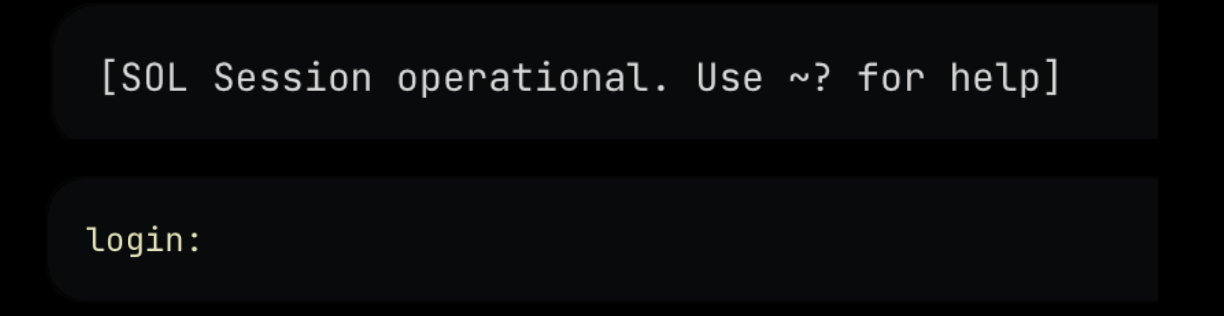
Out-of-Band (OOB) gives you direct access to your server’s hardware-level serial console over SSH.This lets you see and interact with the system before and during boot, including BIOS, GRUB, and early kernel output. Out-of-band automatically enables a serial login on the server after boot, so you can also use OOB to administer Linux even when normal SSH is unavailable.
A Serial-over-LAN console behaves differently from a normal SSH session:
It is lower bandwidth and may refresh slowly
The BIOS interface appears in text mode
Keystrokes may feel slightly delayed
It looks like a normal terminal after login, but it is still a serial console
Graphical KVM output is not available here (use Remote Access instead)
Despite these limitations, OOB provides full control of the machine at every boot stage. For full graphical keyboard-video-mouse access, use Remote Access.
An SSH key (configured in your Latitude.sh account) to open the OOB connection
An OS user password set on the server — required to log in to Linux through the serial console
Servers deployed with only an SSH key don’t have an OS password by default. Before relying on OOB to log in after boot, SSH into the server and set one — run passwd to set the root password, or sudo passwd <user> for another OS user.
If you lost your root password, use Rescue mode to reset it.
Hit Enter to see the Linux login prompt:Log in with the OS user password you set on the server (root or another user with a password). This gives you a full Linux shell, identical in function to SSH but running on the serial console (ttyS0) instead of a network connection.