

Understanding Trusted Sources
When you enable Trusted Sources for your database:- You can specify which IP addresses or CIDR ranges are allowed to connect.
- Connection attempts from IP addresses not on your allowed list will be rejected.
- This provides an additional security layer alongside your database’s authentication mechanisms.
- Limiting database access to only your application servers.
- Restricting connections to specific office or development environments.
- Reducing your database’s exposure to potential unauthorized access attempts.
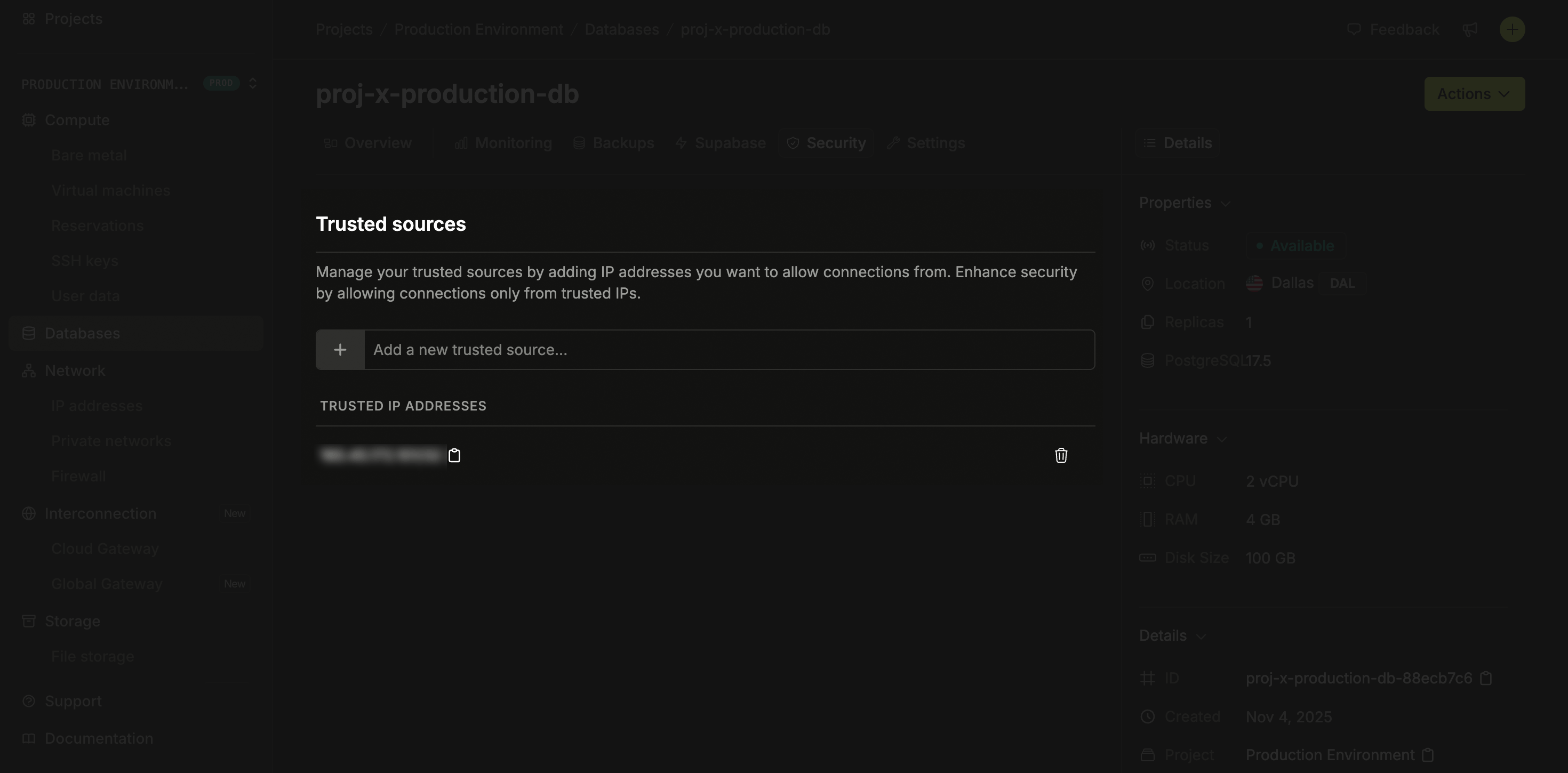
Enabling and configuring Trusted Sources
To configure Trusted Sources:- Navigate to the Databases section in your Latitude.sh dashboard.
- Select the database you want to configure.
- Click the Settings tab.
- Find the Trusted Sources section.
- Enter the IP addresses or CIDR ranges to allow. For example:
203.0.113.1for a single IPv4,203.0.113.0/24for an IPv4 range, or2001:db8::/32for IPv6. - Add multiple entries as needed, one per line.
- Click Save to apply your configuration.
Important considerations
When using Trusted Sources, keep these important points in mind:- Test carefully before enabling in production: Always verify that your application servers and development environments can connect after enabling.
-
Include all necessary IPs: Make sure to include all IP addresses that legitimately need access, including:
- Your application servers.
- CI/CD systems that run database migrations.
- Development environments.
- Database administration tools.
- Dynamic IP considerations: If you’re connecting from environments with dynamic IPs (like home networks), you may need to update your Trusted Sources configuration when your IP changes.
- Backup access plan: Have a plan for updating your Trusted Sources configuration if your server IPs change or if you need to access the database from a new location.
Troubleshooting
If you’re having trouble connecting to your database after enabling Trusted Sources:- Verify your current IP: Check your current public IP address (you can use services like whatismyip.com) and ensure it’s included in your allowed list.
- Check for IP changes: If you’re connecting from a dynamic IP environment, your IP may have changed since you configured Trusted Sources.
-
Verify CIDR notation: If using CIDR notation, ensure it’s correctly formatted (e.g.,
192.168.1.0/24). - Temporarily disable for testing: If needed, you can temporarily disable Trusted Sources to verify if it’s causing your connection issues.